Fedena 3.2 Brings you the Import Question Feature in Online Exam

Blog-graphics1

In the last article, we have talked about the new updates and features in the Online Exam plugin with the newer version of Fedena 3.2. Today we take up a new feature in the Online Exam plugin which is called the Import Question. Read on the article to find out more about the Import Question feature.

Import Question Feature

The basic point of the Import Question feature is that it allows you to import questions from any last exam of a particular batch. And it can be done both in terms of exams which are ‘General’ in nature as well as of those based on any particular subject. To check out how the feature works for exams and questions which are ‘General’, login to your account and go to ‘Online Exam’ in ‘Examination’. Go to ‘View Online Exams’.

import_1.png

Go to ‘View Online Exams’ and select the batch for which you want to make the changes in the question paper and import questions.

import_2.png

Select the particular exam you want to modify.

import_3.png

The ‘Import Questions’ when selected will help you with importing questions from previous exam.

import_4.png

Select the question you want to import from the panel on the left and as it shows up in the right, click on ‘Import’. But you have to fill in the marks for the question as well before you ‘Import’ the question. And you are done with importing questions for exams which are ‘General’ in nature.

In case of exams which are subject based, questions will be subject specific only. To import questions for this kind of exams, you have to first select the particular exam for which you want to do the import question option.

import_5.png

As the screenshot shows, you have to select the ‘Course’, ‘subject code’ and then select the question you want to import. As mentioned earlier, you have to fill in ‘Marks’ allotted to the question before importing the question.

Any good or important question from previous exam you want to be part of a current exam, you can now do it easily with Import question feature.

New Updates in Online Exam Plugin with Fedena 3.2

Blog-graphics-Exam-Plugin
The new version of Fedena 3.2 has a lot to offer to its customers for a better user experience. And some major changes and updates have been done to facilitate such experience, Today, in this article, we will focus the changes and updates that have taken place in the Online exam plugin. Read on to find out the new updates.

Update 1: In the earlier version of Fedena, the online exam plugin allowed only exams which were general in nature and were mostly batch specific exam. That means, exams were only related to a particular batch and were not subject specific.

With the newer version of Fedena 3.2, exams can be created based on subjects as well. Hence, it becomes easy to create separate exams based on subjects.

online_1.png

When you select ‘Subject Specific’ exam, you need to select the particular batch to which you will be asked to select the subject as well as the students who are supposed to appear for the exam.

online_2.png

Note: When you select an elective subject, the students who have the particular elective subject will be able to appear for the exam.

Update 2: There has been a new update in the ‘Exam Format’. Earlier version of Fedena didn’t allow you to go for descriptive type questions. Only objective questions for exam was allowed. But Fedena 3.2 allows you to conduct exam with descriptive type question/answer pattern.

online_3.png

When you select the ‘Exam Format’ as ‘Hybrid’, it allows you to frame subjective type questions. And it also requires you to assign evaluators who will be checking the answers for the questions.

online_4.png


As shown in the picture above, you can assign as many evaluators you want. Only employees can be assigned as evaluators. Employees who are assigned as evaluators can see the link to the page for evaluation under ‘Academics’ when they login to their account.

online_6.png

This is how an evaluator marks an answer sheet of a student.

Update 3: When you select ‘Objective’ as ‘Exam Format’, the earlier version of Fedena offered constant number of options for answers. Fedena 3.2 now allows you variable number of options as answers. That means, you can have different number of options as answers for different questions.

online_5.png

Add as many options you want as answers. Plus, you can remove any option if you want to.

Update 4: Students, in the earlier version of Fedena, were not allowed to see their marks of exams they have attended. Only admin could see the marks. But with Fedena 3.2, students can not only see their marks, but check their answer sheet as well.


online_7.png

A lot more features on online exam will be published in the coming weeks. Stay tuned.

Smarter Ways to use Google Forms in Classroom

Google-FormsGoogle has successfully made its way to classroom. It has come up with a lot of tools to accelerate growth in learning and offer better teaching experiences. In fact, Google has a whole lot of products to offer including the new Google Classroom which is a great option to a perfectly organized classroom. Google Docs and Google drive are other effective tools for creating and sharing, hence something to look out for in classroom teaching. Today, we are going to talk about the Google forms and how Google forms can be used in classroom in the most effective ways.

Google forms is a very prominent feature of Google Drive and there are plenty of smarter ways teachers or educators can utilize them to make the most in classroom teaching.

  • Google forms are ideal for conducting a survey in the class. Communicating with students on regular basis is difficult without the use of proper medium to do it. But the importance of these kind of surveys cannot be ignored too. It not only creates a good teacher-student communication but also motivates students to offer their meaningful feedback and hence, let the educators evaluate the ways to effective learning.


  • What better ways can be to use google forms than a contact information collection form. Get your students fill their details in the form that might be crucial piece of information. A good way to know more about students and parents for future communication. These information are important particularly when you can save yourself from the tedious task of entering data. Everything can be done electronically, why the point of wasting time in doing the same manually again and again.


  • Student assignments are easy to collect with the help of Google forms, particularly when students have to attempt exploratory questions. Everything can be kept in one place as you can easily store all information about classroom projects like web links of blog post, video posts and others at one place. Managing projects is an easier task now.

A great help for assignments, keeping a track of grades and a feedback form, Google forms are perfect assistance to classroom teaching. There are a whole lot of other new ways that you can explore by yourself and employ in classroom teaching.

Check out the video showing some good ways to use Google form in classroom.

Fedena 3.2 Brings you the Rapid Attendance Mode for Faster Attendance

Rapid-attendance

A newer version of Fedena 3.2 has recently been launched and it comes with various new and improved features for a better user experience.

The older version of Fedena didn’t allow you to mark the attendance of any student as absent without giving the reason for absence. But many a times, the reason of absence are not known to teachers and in that case, it was not possible to mark any student as absent. But with the newer version of Fedena 3.2, there is a solution to it- the rapid attendance mode. The rapid attendance mode allows you to mark the attendance of students instantly without the option of reason of absence coming up every time you mark anyone absent. In the earlier version, the entire process of marking the attendance was taking place in four steps, but it has just been reduced to one simple step. Read the article and find out how it works.

The Rapid Attendance Mode

Login to your Fedena account and go to ‘Attendance’ in ‘Academics’ and it will take you to the ‘Attendance Home’ page.

rapid_1.png
Select ‘Attendance Register’ after which you need to select the respective batch for which you  want to mark the attendance register.

rapid_2.png

Select the batch for which you want to mark the attendance.

rapid_3.png

Select ‘Rapid Attendance’ which will allow you to mark the attendance without providing the reason for it. All you need to do is to click on the respective cell in relation to the particular student and the corresponding day he/she is to be marked absent.

Note: Under the new changes, you can also mark a student as absent without selecting the ‘Rapid Attendance’ option. In this case, when you click on the respective cell, the option of reason comes up, but you can save it without providing the reason.

rapid_4.png

Click the option ‘Add’ to store the attendance of the particular student without providing the reason.

A Quick Guide on Brain-Based Learning

BrainA comprehensive new form of teaching, brain-based education focuses on how the brain learn things naturally. It involves all those teaching methods, programs and designs especially designed on scientific researches on how the brain functions while learning. The researches deal with the learning process of students as they grow up and the various emotional, social and cognitive changes that takes place. In short, the age-old belief of intelligence being a constant thing is proven wrong as new researches have proved the fact that continuous learning and practicing of skills can lead to the brain physically changing. Thus, the overall functioning of the brain can now be modified with proper academic programs in schools and educational institutions has all the reasons to introduce special programs that enhances the functioning of the brain of students.

What exactly is this brain-based education all about? Defining brain-based learning would refer to all those techniques and programs that are specially designed on scientific findings on how the brain works. Scientific researches on neuroplasticity has been carried out thus proving the fact that neural connections alters themselves accordingly when people learn new things or have new experiences or practice skills for sometime. Moreover, these findings have also focused on the importance of diet and other conditions like stress on learning functions; emotional state of a being can affect the learning process; that the brain uses various areas in it to store information, among a lot of other conclusions. And so, it is advisable to educational institutions to develop programs and lessons to create such environments that would facilitate the learning process, something that would stimulate the brain like, music for de-stressing, healthy food and exercise for the brain, etc. Brain boosting programs are already taking up a concrete shape with institutions coming up with various courses. The Graduate School of Education, Harvard University offers a master degree program on Mind, Brain and Education.

Benefits of Brain-Based Learning

Investing enough time to research of developments according to the way the brain learn things, would bring out learning materials, programs and strategies accordingly. Here, given below are some benefits that brain-based learning offers to students:

  • Lesson plans can be customized according to the level of intelligence of students with the right quantity of information being supplied to them.
  • Brain based learning strategies can help educators know the different levels of understanding of students, their abilities to perform, how fast they develop skills and their varying learning styles.
  • Stressing on brain-based education programs will also motivate educators to stress on foods and exercise regimes for brain boosting. The right food and physical exercises can trigger the right mood for learning.
  • When educators have the right understanding of how the brain functions while learning new things, different learning strategies can be formulated accordingly. Different students have characteristics of their own and hence, teaching methods can be designed to meet these characteristics.


Brain-based education, in a brief, is all about the researches to frame out strategies and programs on the basis of how effectively the brain can be used to enhance knowledge intake. Educators should engage in framing out these strategies to utilize the brain for optimal learning.

Regulate Book Tags using Manage Tags Feature Available from Fedena 3.1.1

fede

Arranging books in library under tags sounds systematic and makes book searching an easier task. With Fedena, the task is made simple with easy tagging of books. In its earlier version, Fedena allowed tagging of books with some limitations. But the new version of Fedena 3.1.1 has come up with solutions that simplifies the way tags are managed in library. Read the article and know how tags are managed using the new version of Fedena.

The Old Scenario

In the earlier version of Fedena, under the Library plugin, books stored in the library were categorized under various tags like fiction, non-fiction, history, etc. The one shortcoming with  this scenario was that tags could not be managed, like for example, tags of books could not be edited or deleted.But the newer version of Fedena 3.1.1 has a solution to it – Manage tags feature.

The New Scenario

With Fedena 3.1.1, you can now make necessary changes like editing and deleting with the manage tags feature. To do this, you need to login to your Fedena account and go to ‘Manage Tags’ in ‘Library’.

tags_1.png


Select ‘Manage Tags’ and go to the page to manage the tags you want.

tag_2.png
You can edit the tag as is shown in the above screenshot. All you need to do is to click on the tag name and do the editing. Once you are done, click on ‘OK’. Deleting the tag is also made easy with ‘x’ sign as shown. Moreover, if you want to check which all books are tagged under the particular tag, you can do so using the ‘Tagged books’ option as shown above.

Your books and tags are now perfectly managed with this feature.

Fedena 3.2 is Out and Running!

Fedena-3.2

Fedena 3.2 is now out and available. The new version brings you the best of features with increased usability and power packed updates. Read the release note to learn more about Fedena’s latest version. You can also write to us at info@fedena.com for your valuable feedback and insights. We would love to hear from you.


Core Features

Dependencies are shown while deleting a student
Mark attendance for student without specifying the reason
Student’s Admission Number is displayed in Exam Marks Entry pages
Student’s Admission Number is displayed in Attendance Register
Class timing intervals are of 1 minute duration to allow different class timings
Classrooms allocation

Addon Module Features

Provision to reuse previous exam questions in Online Exam

Attachments uploaded during Applicant Registration are shown in student’s profile

Language Updates

  • Changes being done for Hindi, Deutsch, Portuguese and Arabic
  • Added Russian language support

Important Bug Fixes

Finance

  • Wrong discount is shown in finance fees page
  • Zero entries are shown for income in “Compare Transactions report”
  • There is no validation when the same periods are specified for comparison while comparing financial transactions
  • Zero entries for income are shown in finance report
  • Indication of mandatory fields in donation page
  • Indication of mandatory fields in fee particular page
  • Show the fee collection name in alphabetical order in refund page
  • Show the Category Name in alphabetical order in reverted transactions page
  • List of batches not shown when an employee with “Finance control” privilege attempts to create fee particulars
  • “Refund” prefix should apply only for receipts of fee refunds
  • After changing active/ inactive batch selected fee collection is not changing in fee collection page
  • Fine selection is not refreshing after selecting “Select category”

Student

  • Gender of archived male student is shown as ‘Female’
  • Change style of advance search result page
  • Change ‘Language’ to ‘Mother Tongue’ in student profile
  • Year is not shown in the previous details of student

HR

  • Active additional details are not shown in archived employee profile
  • Style issue in the subject association page if the employee’s name is too large
  • If employee has “HR Basics” privilege then he can’t search employee (Advanced search)
  • If employee has only “Attendance register” privilege then no need to show Attendance Report link for that employee
  • Redirection issue in payslip page
  • Employee Departments are not listed in alphabetical order
  • Newly created leave type isn’t shown for employee in the dropdown
  • Error 500 is thrown in Employee Attendance Edit page
  • Error 500 is thrown while denying the approved leave

Settings

  • Overlap of Edit and Delete buttons in the student category create page in some languages
  • Change ‘Graduation’ to ‘Batch transfer’ in batch transfer page

Subjects

  • Show the students list in alphabetical order in elective assign page
  • If no student is present in a batch then show a flash message in elective subject page
  • Students could be assigned to deleted elective subjects by directly going to the link
  • Inactive elective subjects are shown in My Subjects page

App Frame

  • Getting 500 error in app frame if we add question mark in URL link
  • No styles added for the user token page

API

  • Invalid Request error in student admission through API
  • Throwing 500 error in the employee API
  • Throwing 500 error in the student fee dues API for some students and due fees is not showing for other students
  • Throwing 500 error in student API

Inventory

  • Font size for ‘Code’ column entries is more while viewing Store Categories
  • Irrelevant error message is displayed when ‘Other charges’ field is skipped while creating a GRN
  • Admin with employee record should be able to raise indents
  • Indent can be raised for ‘Zero’ quantity
  • Unit Price more than 100000 is not accepted while raising indents
  • Translation issue in store_items page
  • Batch number is not shown in the store items list page

Applicant Registration

  • Edit/delete option should not show in case of Applicant registration and Refund
  • Multiple applications are possible with same pin number

Hostel

  • “availability” text is displayed in breadcrumb in Hostel Report page
  • Irrelevant error message is shown when ‘Students per room’ field is skipped while adding hostel room
  • Change the label in the hostel fee defaulters and fee pay page from ‘Select a class’ to ‘Select a batch’
  • If an error occurred while adding a warden then selected hostel name changes
  • “nil error” in the individual room details page while clicking the rooms from breadcrumb
  • “Hostel admin” privileged employee does not have the permission to download the csv report of the room list

Transport

  • Transport edit page does not show the selected route
  • Change the prompt name ‘Select class’ to ‘Select a batch’ in transport fee defaulters page
  • “Transport admin” privileged employee does not have the permission to download the csv report of vehicle details

Fee import

  • There’s no user feedback upon assignment of fee collection to student during fee import

Exam

  • Employee with ‘Examination’ privilege can’t generate pdf report of exam wise report
  • Employee with ‘Examination’ privilege can’t generate csv report of grouped exam report
  • Empty table is shown if no exam exists
  • Wrong calculation is shown in the exam report if we remove the assigned students from the elective subjects
  • Not possible to update the grade to nil, showing error message

News

  • Large images aren’t rendered in compressed form while adding/viewing news
  • Not possible to approve the deleted user’s comments

Attendance

  • Unable to mark student as ‘Absent’ for previous month in daily attendance type
  • The Close button of attendance marking form is not working if the student name is too large
  • Subjects are not refreshing while selecting the ‘select a batch ‘ prompt in the student attendance report

Manage Course

  • Show flash message while assigning and removing tutor
  • If there are no active courses or batches then show message instead of showing blank page
  • Change the privilege name ‘Add New Batch’ to ‘Manage Course/Batch’
  • Values in ‘Subject’ dropdown aren’t shown according to the batch selected

Library

  • Returned books aren’t shown in Library Movement Log
  • Performance issue in tag list
  • In student and employee profile for reserved book, due date is shown instead of reserved date

Placement

  • Calendar shows “January 2014” month by default while creating a placement announcement

Assignment

  • Throwing 500 error while viewing the created assignment

Email

  • User can send Email without subject and message
  • Emails sent in Arabic do not have the ‘powered by’ footer

Timetable

  • Show the batch name in New/Edit timetable page if class timing set (containing class timings) is assigned

SMS

  • If the batch has no students then show a message in sms page
  • Change the flash message and its position in sms page

Employee

  • Permission issue for tutor, subject associated employee and employee having  “Student view” privilege

Custom import

  • Associated data is not shown for some models in custom import
  • Unchecking one associated data unchecks all the selected details in custom import library model

Gallery

  • If an error occurs while uploading a photo in gallery, all the selected users get removed

Document

  • An attempt to delete without selecting document files  throws “Translation Missing” popup
  • An attempt to delete document throws “Translation Missing” popup


Previous Release notes:
Fedena 3.1.1
Fedena 3.1
Fedena 3.0

Fedena 3.1.1 Now Allows Edit in Past Timetables

Blog-graphics-Edit-Timetable

The latest version of Fedena 3.1.1 has come up with a lot of new modifications and features. Today, we are going to talk about the new Past Timetable Edit feature that allows you to edit any past timetable. Read the article and know how the new change in past timetable can be done.

The Change

During the old scenario, you were not allowed to make any edits in the past timetable. In this case, if you were to make changes for a particular batch for any subject, you had to go through the ordeal of creating a fresh new timetable for it along with assigning of teachers to the changes you make to the timetable. But with the new version of Fedena 3.1.1, you can now make edits to the past timetable.

How to do

Go to ‘Timetable’ in ‘Academics’ when you log in to your Fedena account. You will get ‘Edit timetable’ in it to select. It will take you to the edit timetable page:

timetable_1.png

Select the particular period for which you want to make the changes.

Saint1 - Chromium_327 (1).png
Select the start and end date and click on ‘Edit entries’. You will get the message regarding the edit as shown above.

Note: When you make edits to a particular timetable, you should note that all subject-wise attendances related to the particular timetable (time period) will be deleted.

Project Sampoorna: Case Study

Case-copya

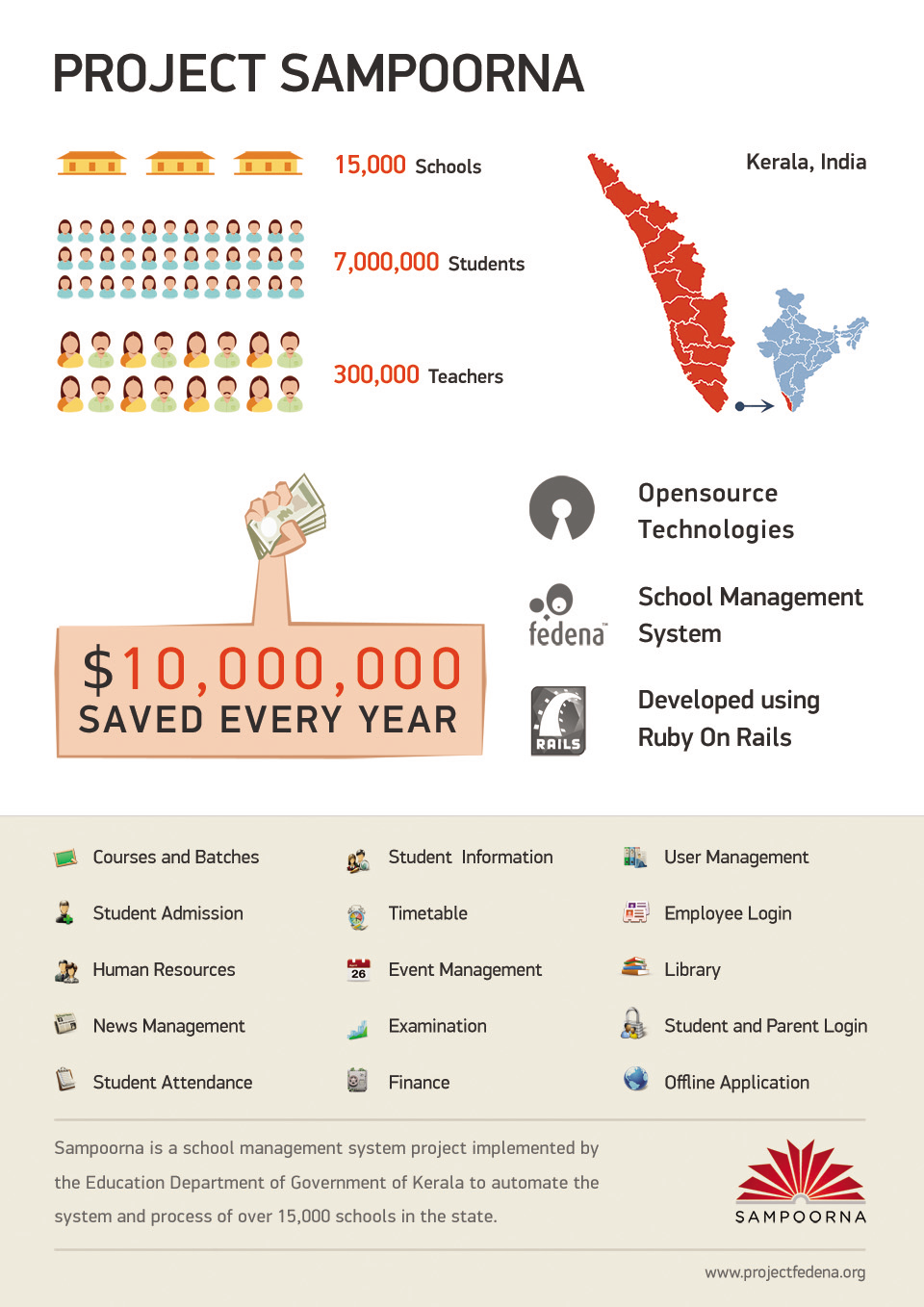
Project Sampoorna is an implementation of Fedena by the Government of Kerala, in the state of Kerala, India, to automate the systems and processes of 7 million students in 15,000 schools with students ranging from Standard 1 to Standard 12.

Challenges Faced:

Efficient management of certain processes like generating and preparation of reports, creating promotion list, examination database, admission registers and a whole lot of other tasks required a comprehensive mechanism.

Solution by Foradian:

Fedena enterprise solution

The Result:

Fedena’s enterprise solution could give them the results to their problems. Fedena was customized based on their requirements that helped them with tracking and monitoring the activities of the students and also the school itself.

Project Sampoorna: 15000+ schools. 7 million+ students

A school management system project by the Education Department of Government of Kerala, in the state of Kerala, India, Sampoorna is implemented to automate the systems and processes of more than 15,000 schools in the state. Developed by IT @School Project, Sampoorna made the accessibility of more than 7 million students from Standard 1 to 12 easier to school authorities. The main objective of the project is to facilitate principals, headmasters and teachers to easily implement the software and monitor all the students and the school itself.

Problems Faced
1. Managing the vast array of processes and systems of the schools requires a comprehensive mechanism.
2. Customized ERP software solution based on requirements of the education system.
3. The systems and management involved to monitor students, teachers and the schools required automation for easy management and in less expense.
4. This kind of education format has multi-layer approval system and different hierarchical roles and hence, required role based dashboards for all, at each of the layers.

The solution: Fedena enterprise solution

1.
Fedena’s enterprise solution offered easy implementation and monitoring of all the activities of students and the schools as well. Important processes like preparation of transfer certificate, generating reports related to students, teachers, parents and staff made easy, creating promotion lists, copying of admission register and a whole lot of other tasks are carried efficiently.
2. A customized version of the software was offered to help manage systems and processes unique to the education system.
3. Complete automation of the order has helped the customer save some 10 million dollars every year.
4. Fedena multi school and different layers of dashboard control mechanism was used to manage various role-based responsibilities in addition to the single school dashboard and control.

“Sampoorna has been visualized as a comprehensive mechanism to facilitate academic activities such as progress tracking and even determining the aptitude of a student right from when he/she is admitted to the 1st standard itself.” – K Anvar Sadath Executive Director, IT@School Project Kerala

sampoorna-infographix

The changed user privileges in reminder with Fedena 3.1.1

Reminder

 The new Fedena 3.1.1 comes with some important updates in the internal messaging system. In keeping with the varying requirements of educational institutions, Fedena 3.1.1 is now available with some changes in the user privileges in reminder. Read the article and know the scenarios for which the changes have been made.

Scenario 1: Fedena 3.1.1 now allows parents as part of internal messaging system

In the earlier version of Fedena, parents of students were not a part of the internal messaging system. The new updated Fedena 3.1.1 now allows parents to be a part of it. Parents can now view and send messages or reminders to their children and the teachers or tutors associated with their children and their respective classes.

Desktop1.png

Scenario 2: Students are now allowed to send messages to their respective batch teachers and other students

Earlier version of Fedena allowed students to send messages to students and teachers from different batches and courses which was mostly not required for. With the new Fedena 3.1.1, students can now view and send reminders to teachers who are associated with their batch and also to classmates as well. Plus, they can do the same with their own parents.

IMS_2.png

Scenario 3: Employees are divided into normal employee and teacher/tutor

Unlike the earlier version, employees are now divided into normal employees and teacher/tutor. In the case of normal employees, they can view and send reminders or messages to other staffs in the institution and also to students. But they are not allowed to do the same with parents.

IMS_4.png


In case of teacher/tutor, the teacher can view or send messages or reminders to other staffs in the institution, students and parents of the students they are associated with.

 IMS_3.png


Changes seen in Development & Deployment: Experience with Ruby on Rails – Part 2

Ruby

We covered some fundamental changes in environments of Fedena, Uzity and Flux covering CLI commands, Plugins, Gems, Asset pipeline, Bundler, Turbolinks, CoffeeScript and SASS in the  the first part. In this part, we will be covering about the changes seen in some other aspects of development and deployment, like ActiveRecord, Tags, ActionMailer etc.

Action Callbacks

Action callbacks are used mainly to prevent repetition of code in controllers by calling identical codes repeatedly. Rails  offers several action callbacks in controllers like before_filter, after_filter etc across all the three RoR environments we use. New alias methods have been added to action callbacks in rails 4, which enables us to use before_action, after_action etc. instead of before_filter, after_filter etc. However no sign of deprecation of these methods are shown.

ActionMailer

ActionMailer is used to send emails from a rails application. In rails 2.3, i.e in Fedena, ActionMailer is present as a Model. With the release of rails 3, ActionMailer was changed from model to a class and relocated to ‘app/mailers’ from ‘app/models’. This system remained unchanged in Rails 4. Also in Fedena, method prefixed with ‘deliver_’ was used  to send a mail. Calling method name as such is sufficient in Rails 3 and above. Uzity follows this method. ActionMailer has not been used in Flux.

Delayed_job

Delayed Job does not come by default in Rails. Delayed Job is a gem added manually. This was extracted from Shopify. Delayed Job can be used to execute time consuming process like preparing complex reports, sending emails etc. Delayed Job is used as a plugin in Fedena with some customizations. In Fedena delayed job is used to compile some reports, send emails etc. In Uzity, ‘delayed_job_active_record’ is used. This gives more control over queuing and priorities for jobs by naming queues and assigning priority in integer values. Delayed::Job.enqueue is used to append a Job to the delayed job in Fedena. In Uzity it can be done either by Delayed::Job.enqueue or by defining handling method in Models. ‘handle_asynchronously’ can be used to make a method execute as a Delayed Job. Delayed Job is not used in Flux so far.

PATCH Method

‘PATCH’ has been used as a primary method for ‘update’ in Rails 4. Both ‘PATCH’ and PUT are routed to ‘update’. PATCH is ideal for partial updation and for APIs. PATCH is a relatively new standard and what it does is that it applies a delta rather than entire resource updation.

Form Tags

Form in Fedena, used to have form written in a non-output syntax, like

<% form_for ...

This changed to syntax with output(with ‘=’ sign) from Rails 3 onwards like

<%= form_for ...

ActiveRecord Changes

ActiveRecord is responsible for mapping persistent data to ruby classes in a Rails application. It represents the ‘M’, i.e the Model in MVC Architecture. ActiveRecord usually goes through significant changes throughout every major and minor version updates of Rails. Some of such changes we see regularly between the operating environments of our applications are discussed here.

Query Engine

Querying mechanism has changed in Rails 3, increasing the flexibility of code in the controller. Several new methods like where, order, select etc were added. ‘where’ method was introduced, which can replace ‘find’ in queries. where returns an ActiveRecord::Relation. It is a collection of method objects unlike find which returns a single record or find_all which returns an array.

Throughout Fedena we use find and find_all for querying, with conditions specified either in the ‘Rails way’ or in SQL format, and returning data in arrays . In Uzity we got the new, ‘where’ and several other related methods in addition to find. In Uzity we use ‘find’ at some places where we expect the results to be in array format and with less data manipulations. In complex actions, we use the ‘where’ method so that we get an ActiveRecord Relation which we can keep on chaining till the expected result with lesser database calls. With Rails 4 several ‘find’ related methods saw deprecations by introduction of new methods and emphasis on ‘where’. So to avoid deprecation warnings and to be safe with future versions of rails we use the new finder methods in Flux.

Scopes

‘named_scope’ has been deprecated and changed to just ‘scope’ with Rails 3. The ‘conditions’ like we use in named_scopes also have to be changed to relation methods such as where, order etc. as mentioned previously. We use named_scopes and dynamic_scopes in all three applications, but tend to use it in very high frequencies in Uzity and Flux.

Query Chaining

Thanks to the ActiveRecord::Relation returned by latest methods starting from Rails 3, queries can now be chained with ease. The ActiveRecord relations returned by relational methods can be further queried many times. As a result, we tend to use more scopes in the models of both Uzity and Flux for pretty code and simpler and optimized queries. For example, if we add the scope ‘active’ and ‘open’ to the Task model, it is enough to use

Task.active.open.where(:id=>objective_id)

instead of

Task.find(:id=>objective_id,:is_deleted=>false,:status=>’open’)

or further longer

Task.find(:all,:conditions=>{:id=>objective_id,:is_deleted=>false,:status=>’open’})

ActiveRecord Store

ActiveRecord store was introduced in Rails 3.2. It is a simple key/value store. It stores a Hash as text, which is serialized upon load and save. It can be flexibly used to addition fields for a record. ActiveRecord Store is used to maintain notification count in Uzity.

Mass Assignment Controls

Along with the other security fixes, Rails also introduces several methods to prevent end user data. ‘attr_accessible’ and ‘attr_protected’, defined in Rails models were introduced in rails 3 to serve this purpose. These are basically blacklisting(attr_protected) and whitelisting(attr_accessible). This was made very strict by default in  Rails 3.2

With rails 4, a new method called ‘strong-parameters’ was introduced. The attributes are now protected from the controller part rather than from the model part, restricting the flow of parameters to the model. Only whitelisted parameters are permitted the flow. This however caused a lot of troubles dealing with nested forms and uploads in Flux at initial times until we got used to.

Migration Changes

Migrations remains more or less same throughout Rails 2.3 to Rails 4 with less number of deprecations. In Rails 2.3, i.e in Fedena, we had to write separate up and down migrations for each migration. In rails 3, writing ‘change’ migration was enough, but had trouble dealing with ‘change_tables’ and ‘drop_tables’. The change method was preserved in Rails 4 with fixes to ‘change_table’ and ‘drop_table’.

In general, while switching between projects in different versions of Ruby on Rails, it is very obvious that the application development is becoming easier with every new major versions of Rails. Rails 2.3 is like the essence of Rails among the three versions used. If we have experience developing in that environment, we can easily handle the newer versions without much problems apart from the initial lags.

This article is written by:

TP


Sooraj T P
A hard core coder. A gadget freak. An unsung designer. There is hardly anything which Sooraj doesn’t talk about, be it tech, gadget, design, automobile or more. Sooraj is the “Tech Saint in making”.
Everything you Need to Know About App Frame

1bWhat is App?

App is a software that provides a specific and desired functionality. App is built to ease the users/customers of a service provider or product company for a number of desired services. Apps are of various types based on platform dependency, viz. mobile or native apps, web apps.

What is App frame?

App frame is a concept of nesting apps developed in for Fedena. The concept is not something new, apps like facebook already has implemented apps through similar sort of technologies. It basically means, to include an app inside another app. Parent application is provisioned to include another app, this helps user to get functionality which is either related/non-related to parent application. Main advantage of this concept is that, the parent app gets the new functionality meanwhile implementation overhead of the new functionality is taken out of the parent app. Also App frame will be an isolated independent app. Just that it uses parent app like a container to load. App frame can reside within same hosting area as parent app or even can be a third-party app.

In Fedena, App frame  is implemented as a plugin. A Fedena admin user and privileged user can add an app frame. Fedena App Frame is basically an app inside fedena’s frame. An app is an independent application. It resides outside fedena. Fedena loads the app using an iframe. An iframe is used to display a web page within a web page. Iframe is an html tag defined as follows:

<iframe src=”URL” width=”200″ height=”200″ frameborder=”0″></iframe>

here URL corresponds to web url or link of web page or service included as an app frame width, height and frameborder are some other parameters that define the width, height and border of frame area used to display app frame within iframe.

Most interesting thing of using app frame is we can include any other web service within fedena. It gives flexibility and user ease. A fedena user doesn’t need to go outside fedena to access those services. Admin can even add educational games provided online by any third-party

Uploaded by Awesome Screenshot Extension
App Frame Management

Fedena App Frames are very user friendly and hassle free. Fedena admin can add various external apps in fedena as an app frame. From menu user can browse to manage apps. From there can add new apps, edit or delete old apps. Its so simple to use.


Uploaded by Awesome Screenshot Extension

Fedena app frame can allow 3rd party client to become Fedena Oauth clients. This permits them access to internal fedena. Fedena app frames can be made for category of users ie. admin, students, employees and parents.

Fedena OAuth Clients

Fedena OAuth Clients (Apps) are those third party apps, which register in fedena , and fedena authenticates and authorizes the app to use the fedena’s protected  resources. The process are implemented using OAuth2 protocol. For example, a third party client can access fedena student APIs to access student data, process it and show the map with addressed pinned in it.

App frame Limitations

App frame do have certain limitations besides flexibility and user ease. Some are third-party restrictions, some are technical restrictions and some based on UI.

  • Admin can include any web service as an app frame, for which provider has no objection to use their service/app on a third party platform.

  • In case of technical restrictions, restrictions are set by CORS. CORS means cross origin resource sharing, it basically means permissions/restrictions to prevent or allow a service to be used on a third party platform. CORS introduces a standard mechanism that can be used by all browsers for implementing cross-domain requests. The spec defines a set of headers that allow the browser and server to communicate about which requests are (and are not) allowed. CORS continues the spirit of the open web by bringing API access to all. This is used as a means also sometimes by providers to prevent usage as a frame inclusion on other platform or web services. Basically when an app frame is opened, a request goes to respective source of included third-party service. The response request can include an Access-Control-Allow-Origin header, with the origin of where the request originated from as the value, to allow access to the resource’s contents. The user agent validates that the value and origin of where the request originated match. If it matches, app frame will load otherwise app frame will fail to load.

  • UI restrictions are miss-match in user friendliness, designs of framed app. If the app frame has a scroll and you want to make frame scroll less, then a code snippet has to be pasted inside the page being shown. Code snippet can be obtained from the index page of App Frame by clicking on the respective app name. You will be taken into the show page, listing the details of the selected App Frame. Copy paste the client script in the last row and add it in the page being show. Then the page will become scroll less.

App frames are an area which makes freedom for fedena users to add their own chosen apps, without needing them to buy or develop.

This article is written by:

Untitled

Shridhar Agarwal

A coder and only coder. His time goes around his laptop. Coding web apps, websites. He is literally born to develop things he finds missing. There is hardly anything he is not doing. A music lover & a Foodie. ”